


End user tutorial, How to join HHMeet(Zoom) meeting?
Protect your Zoom Meeting with DRM-X 4.0, it supports advanced DRM security features, such as Haihaisoft Smart Prevent Screen Recording Technology, Blacklist, Dynamic Watermark, Hardware binding, Prevent Virtual Machine, and so on.
End user tutorial, How to join HHMeet(Zoom) meeting?
1. Run HHMeet.exe
Paste the HHMeet URL, the URL must have complete and correct parameters: https://hhmeet.com/m.html?p=xxxxx
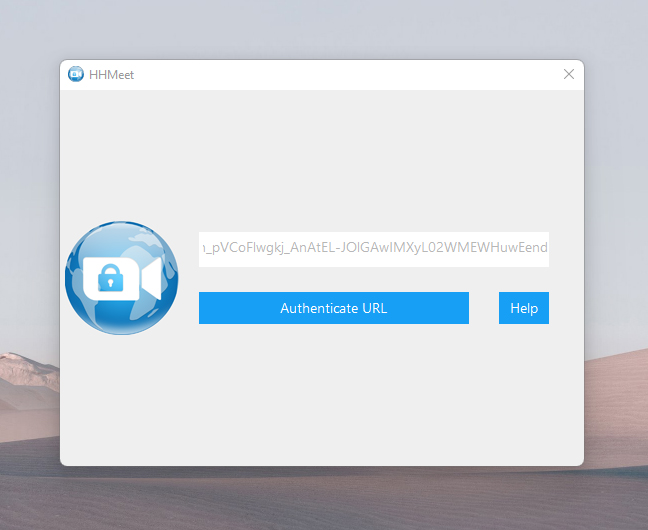
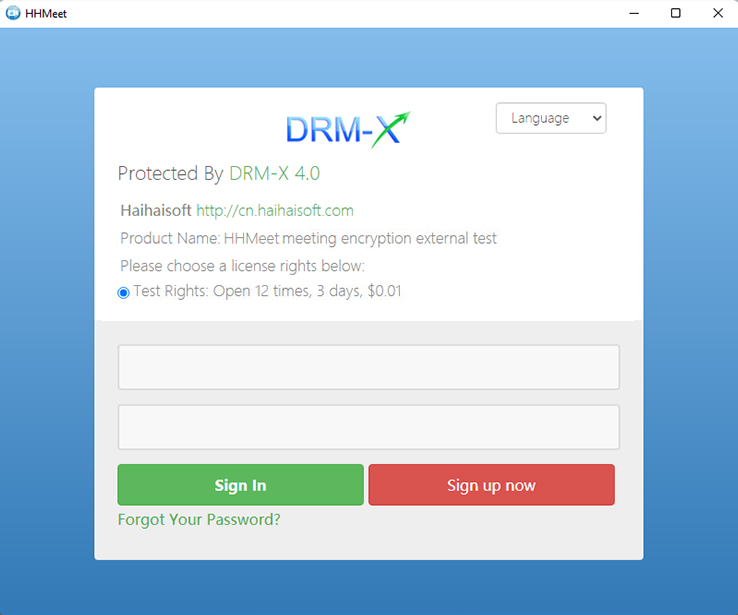
2. Click Authenticate URL to verify, and then enter the DRM-X 4.0 end user account to obtain the license.
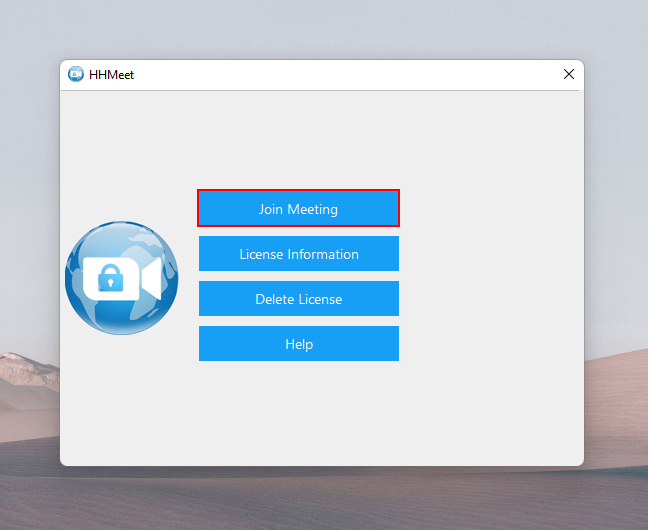
3. Click the Join Meeting button to join the meeting.
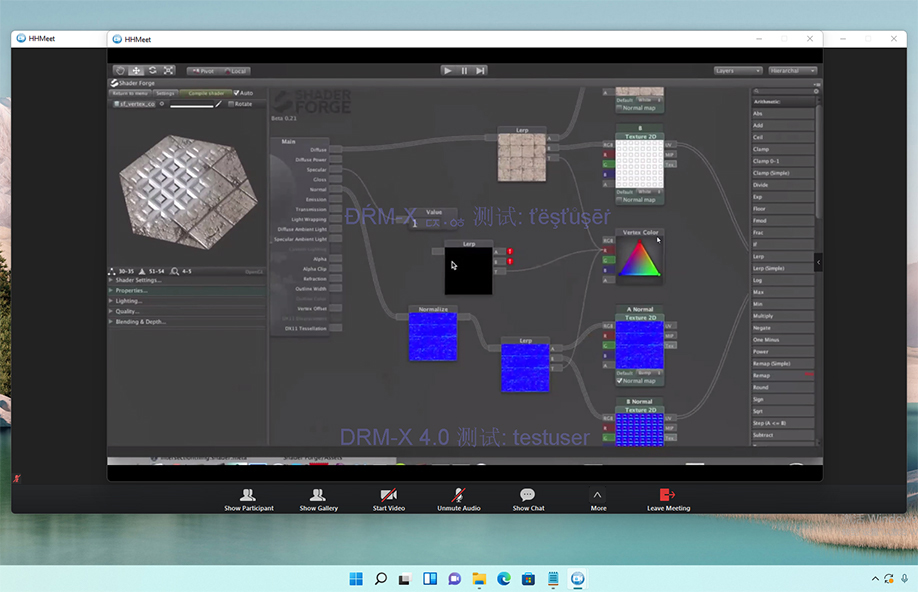
If the meeting host does not start the Zoom meeting, users can only see their own camera screen. After the host starts the meeting, HHMeet will display the complete meeting interface, including chat, microphone switch, camera switch and other functions.
Meeting effect:
Content provider tutorial: How to protect Zoom Meeting with DRM?
Protect your Zoom Meeting with DRM-X 4.0, it supports advanced DRM security features, such as Haihaisoft Smart Prevent Screen Recording Technology, Blacklist, Dynamic Watermark, Hardware binding, Prevent Virtual Machine, and so on.
1. Purchase a Zoom Pro account.
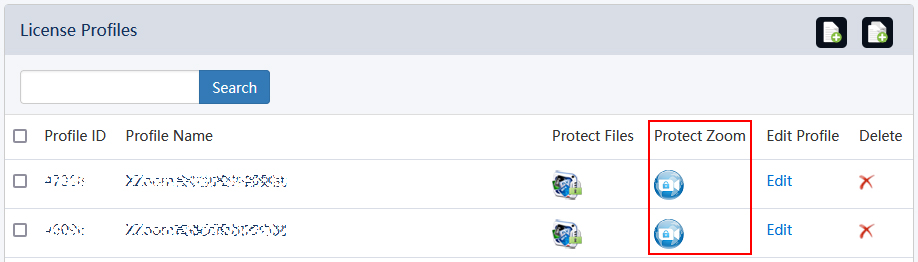
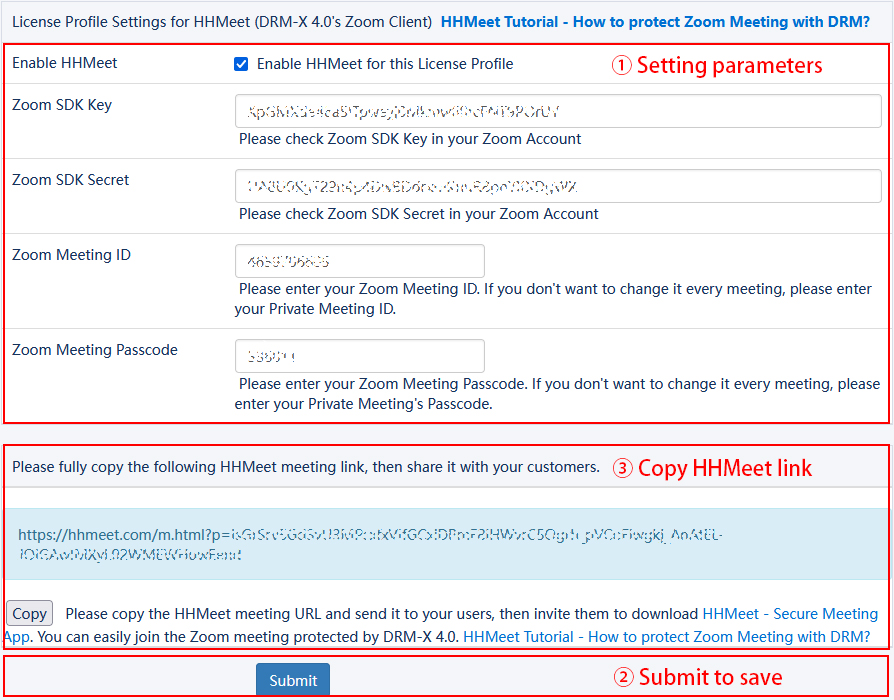
2. Login to the DRM-X 4.0 Enterprise account. Select the HHMeet icon under [Protect Zoom] in the license profile to set the parameters.
3. Submit to generate the meeting URL.
4. Create an end user account.
5. Send the meeting URL, end user account and HHMeet client to the user.
The pictures are shown as follows:
How can I check the parameters of my Zoom SDK?
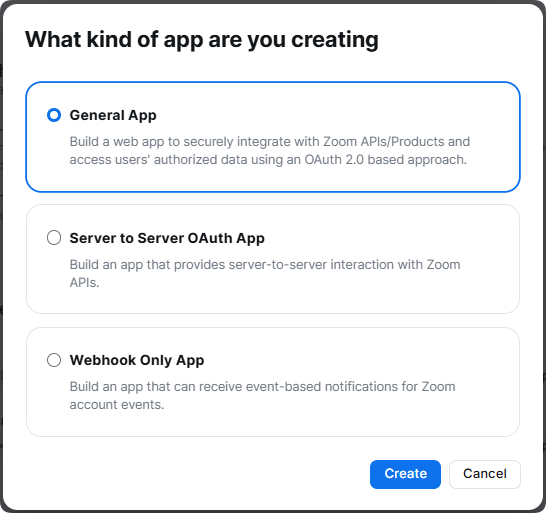
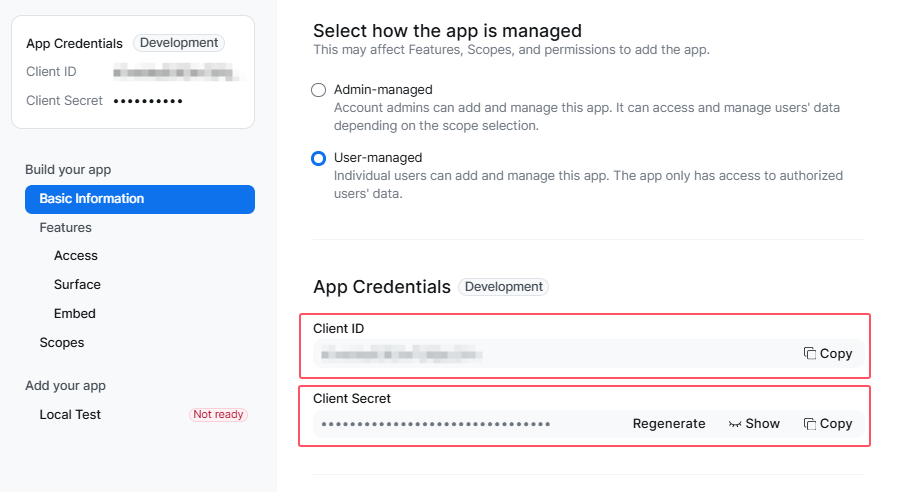
Please visit Zoom App Marketplace: https://marketplace.zoom.us/ Login to your Zoom Pro account and create SDK.
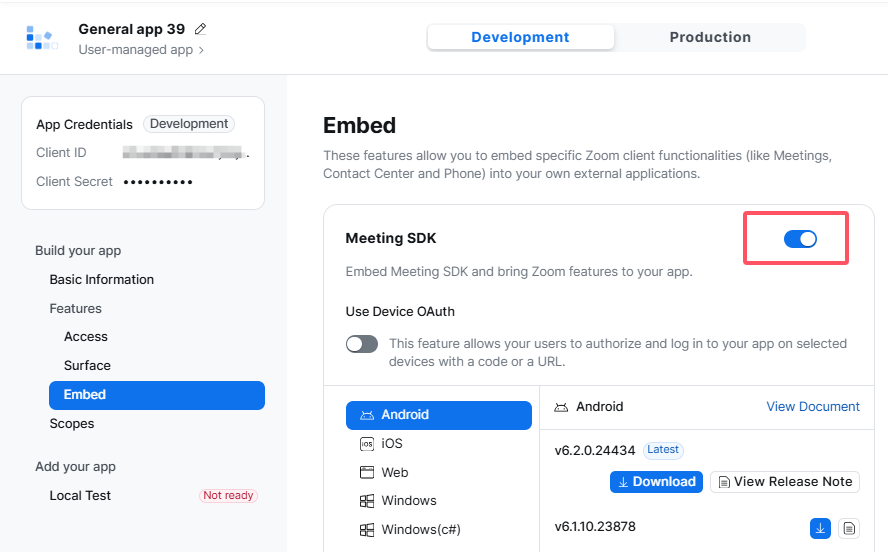
How does the content provider start the meeting?
1. Use the standard Zoom client to host and start the meeting.
2. Invite users to use HHMeet and paste the HHMeet link.
FAQ:
1.After HHMeet.exe is closed, you need to wait 5 seconds to start HHMeet again.
2.After deleting the license, you need to close HHMeet and run it again for it to take effect.
3.If the screen does not move, or the screen is black. Please rejoin the meeting.
4.If the shared screen does not move, please rejoin the meeting.
5.If you use High Definition(High DPI) monitor in Windows, such as 4k monitor. HHMeet for Windows texts and window will be very small. You need to change your monitor's resolution to 1920*1080 to fix the problem.
6.Passcode wrong problem in HHMeet for Windows, MacOS, and Android. If the Zoom Meeting Passcode is wrong(The Zoom Meeting Passcode that you set in DRM-X 4.0 account doesn't match Zoom Meeting Passcode), the meeting will unable to connect. So you need to check your DRM-X 4.0 account, License Profiles -> Protect Zoom -> Zoom Meeting Passcode settings, and make sure you set the correct Zoom Meeting Passcode.
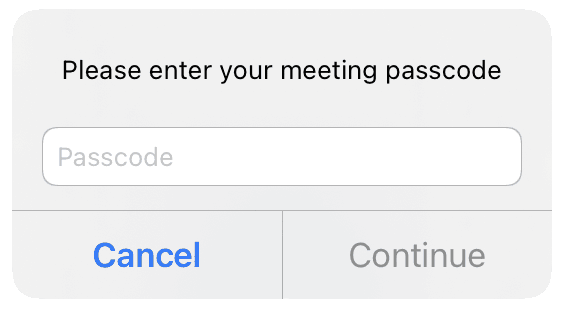
7.Passcode wrong problem in HHMeet for iOS, It will show you a dialog: "Please enter your meeting passcode in HHMeet iOS", It means the Zoom Meeting Passcode is wrong(The Zoom Meeting Passcode that you set in DRM-X 4.0 account doesn't match Zoom Meeting Passcode). So you need to check your DRM-X 4.0 account, License Profiles -> Protect Zoom -> Zoom Meeting Passcode settings, and make sure you set the correct Zoom Meeting Passcode. Please don't share this passcode to your users.
8.Error: The code execution cannot proceed because MSVCP140.dll was not found. Reinstalling the program may fix this problem.
You need to install Microsoft Visual C++ 2015 Redistributable to solve the problem.
Go to the Microsoft Visual C++ 2015 Redistributable Update 3 download page, choose the correct language, most Windows system is 64 bit now, you can download vc_redist.x64.exe and then install it.
https://www.microsoft.com/en-us/download/details.aspx?id=53840
If your system old, and it's 32 bit, you shall install vc_redist.x86.exe.
9.In Webinar mode, users who join Webinar after the host shares the screen cannot see the shared screen, and the host needs to close and reopen the shared screen.
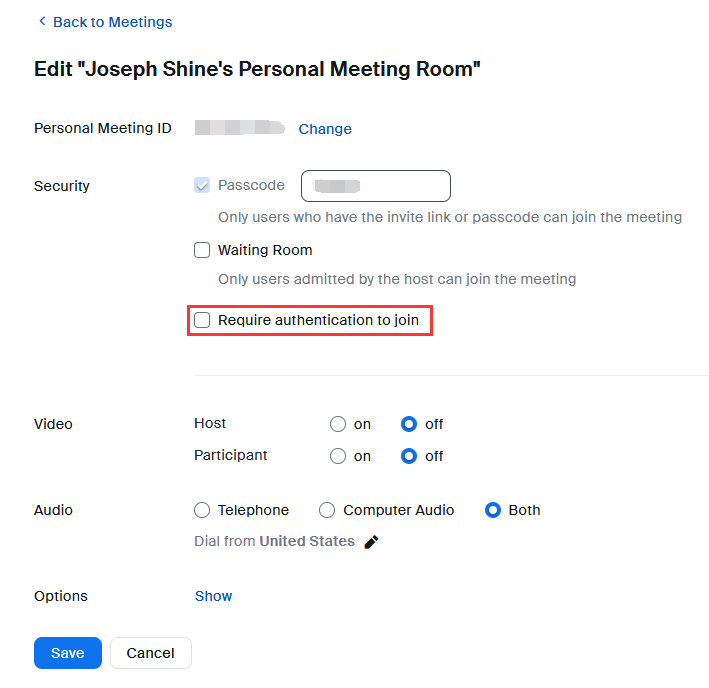
10.When using HHMeet to join a meeting, it prompts "Join meeting failed, error_code = 23", the error screenshot is as follows:
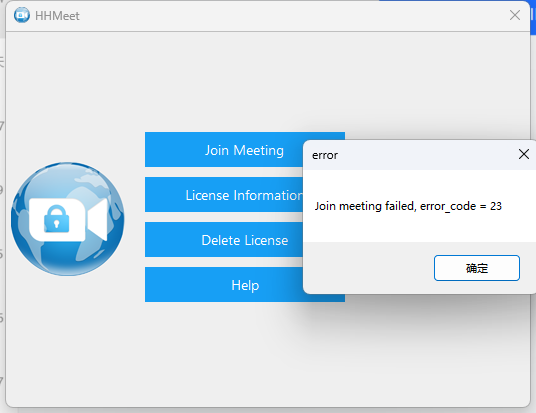
Solution: Set up the meeting and do not select "Require authentication to join"
11.HHMeet reports "x c 5 error!" error
Please delete the license and get it again.
Other DRM-X 4.0 Tutorials
 DRM-X 4.0 Introduction Video
We through the Video show you the demo how to use DRM-X 4.0 platform, how to settings before encryption and How to encrypt video. We will show you how to play encrypted video.
WATCH NOW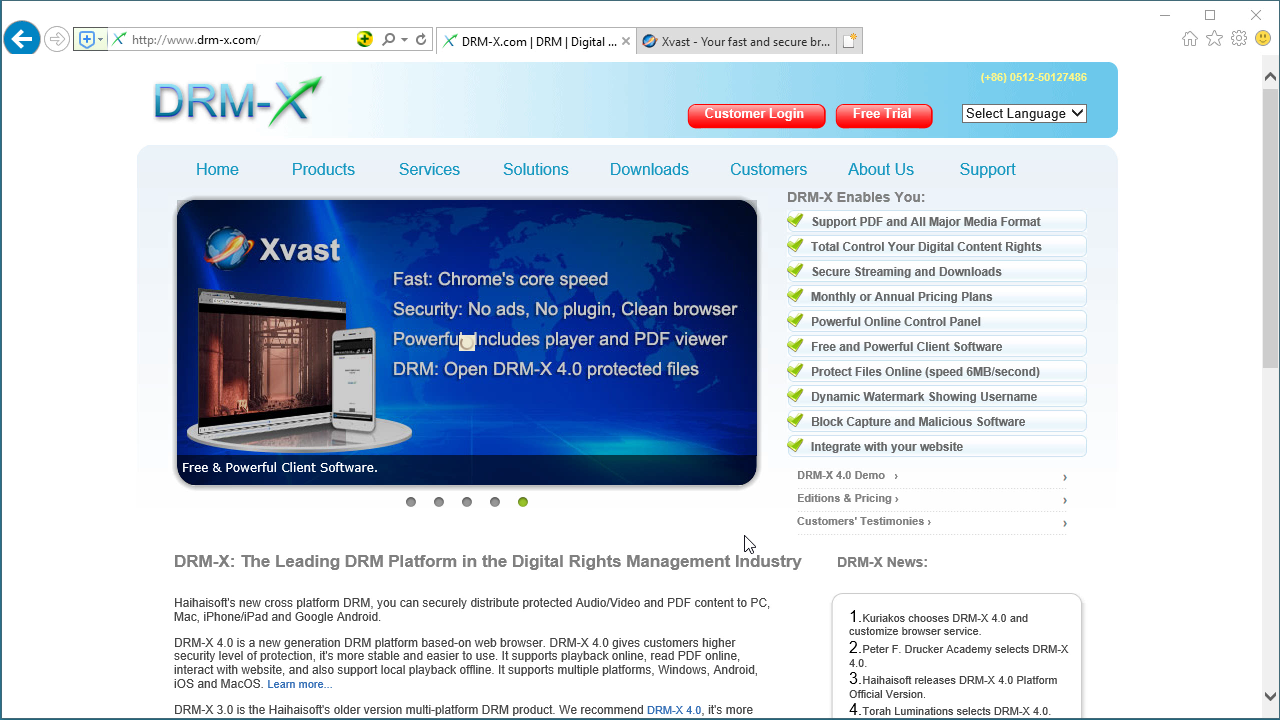 DRM-X 4.0 HTML web page encryption tutorial
With DRM-X 4.0, it encrypts web pages includes html, CSS, JavaScript and images, and control who can view your web content. It stops copying, prevent printing and print screen, and expires content when it should no longer be viewed.
WATCH NOW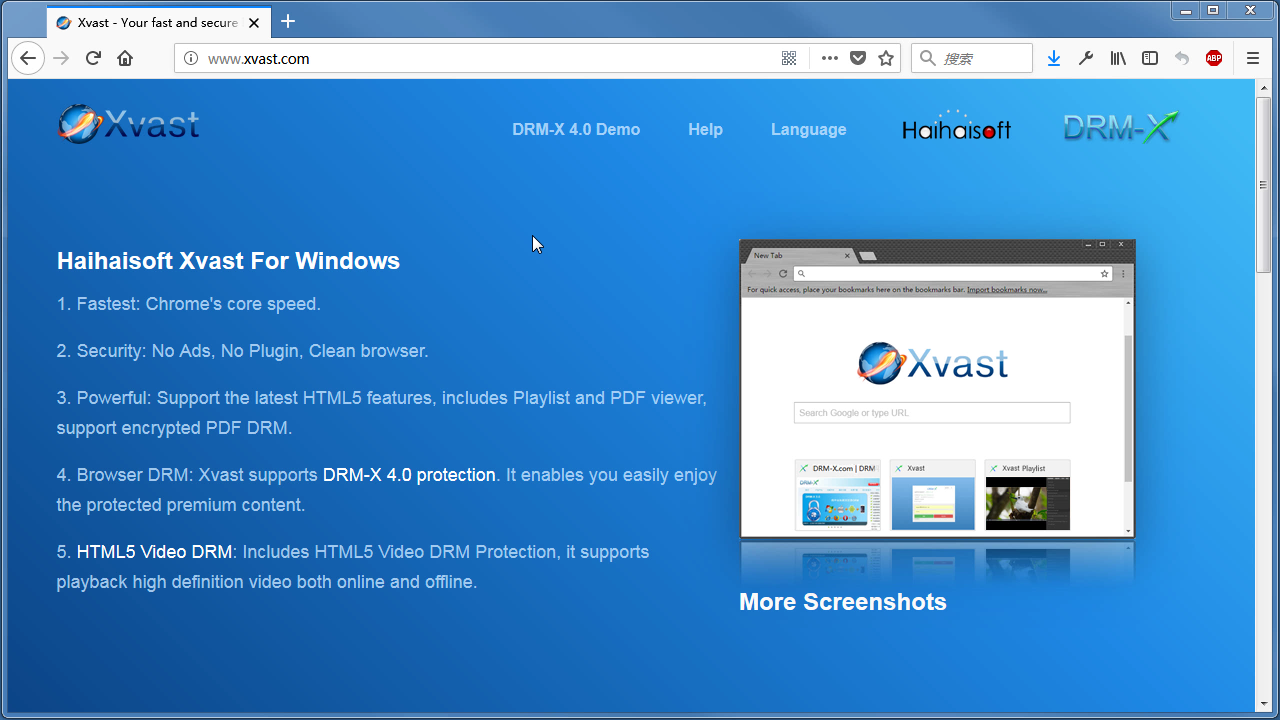 Xvast Windows Video Tutorial
We through the Video show you the demo how to download, install and use Xvast browser, how to open encrypted file and How to solve problems with use.
WATCH NOW DRM-X 4.0 Video Encryption Tutorial
We through the Video show you the demo how to use DRM-X 4.0 platform, how to settings before encryption and How to encrypt video. We will show you how to play encrypted video.
WATCH NOW DRM-X 4.0 integration with WordPress
Custom login page integration is a customer ordered a protected content from your website, when customer plays the content, it will prompt your website customized login page, after customers input Username and Password of your websites account, they will get the license immediately to play the protected file. It requires you create a new DRM login page.
WATCH NOW DRM-X 4.0 Security Settings
When you use DRM-X 4.0 platform, there's something to notice. To make protection safer, please select a series of necessary options to prevent piracy. It's very important to do these settings in the beginning.
WATCH NOWQuestions?
Our reps have answers.
Ask about Haihaisoft products, pricing, implementation, or anything else — our highly trained reps are standing by, ready to help.
Tel: +64 27 507 9959 (New Zealand)
QQ: 1279126286 / 994184623
Contact us on Microsoft Teams
service#haihaisoft.com (replace # into @)
Contact Us